Nov 16, 2026 · @Walter S. Hutsky Jr.

I built a working genealogy app in about six minutes, and I never wrote a line of code. All I did was type one sentence into an AI coding tool.
I wanted to find out how easy it is to “vibe code” a small app, meaning you describe what you want in plain English and let the AI do the programming. To make the test real, I picked something I would actually use: an app that opens a GEDCOM file, the format Ancestry.com and other family tree programs use to store ancestry data, and lets me search it.
What is Cursor?
Cursor is a code editor with an AI assistant built in. It is made by a company called Anysphere and is based on Visual Studio Code, the editor many developers already use. You can download it from Cursor.com and install it like any other Windows or Mac program. I used the free version of Cursor for this project.
The difference from a regular editor is the chat panel. You tell the assistant what you want, and it can create files, run commands in a terminal, fix its own errors and even test the result in a built-in browser. In other words, it acts more like a junior developer than a text editor.
That is what people mean by vibe coding: you steer by describing the outcome, and the AI handles the code.
The idea: a GEDCOM reader
GEDCOM (.ged) is the standard file format for family tree data. When you export your tree from Ancestry.com or most other genealogy programs, you get a plain text file listing people, birth and death events, places, occupations and who is related to whom.
The file is useful but hard to read by eye, so I wanted a small app that opens it and lets me search by name, place or year. It is a good test project: it needs file handling, a parser for an unusual format, search and a simple interface, but it is small enough to finish in one sitting.
What I did
The whole process took three steps:
- Downloaded the free version of Cursor from Cursor.com.
- Installed it on my Windows PC.
- Opened a new chat and typed: “Build me an app that can pull up gedcom files and let me search ancestry information.”
That was the entire prompt. Cursor asked me two quick questions: what to name the project folder, and whether I had any setup preferences. I accepted the suggested name (gedcom-explorer) and the defaults, which meant a local web app built with Vite and React.
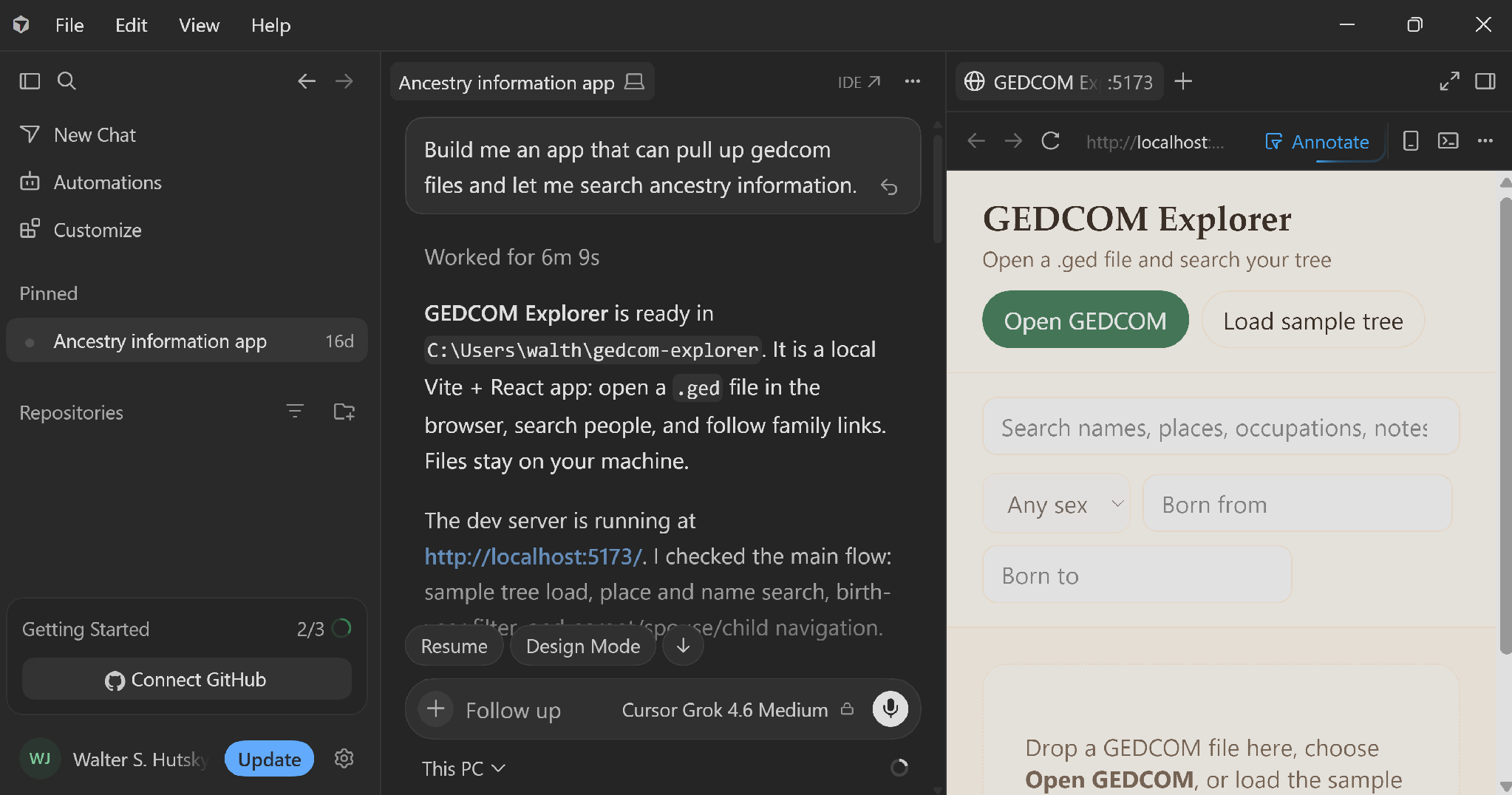
Cursor on my PC: my one-sentence prompt in the chat, and the finished app already running beside it.
What Cursor built
Cursor worked for 6 minutes and 9 seconds, and I did not touch the keyboard. In that time it:
- Created the project folder and scaffolded a Vite and React app
- Installed Node.js, the runtime the app needs, through the Windows package manager (winget), because my PC did not have it
- Wrote a GEDCOM parser, a search screen and a person detail view
- Added a sample family tree so I could try the app before loading my own file
- Started the app and tested it in its built-in browser: loading the sample, searching, filtering by birth year and clicking through to parents, spouses and children
The finished app, GEDCOM Explorer, runs in a web browser at localhost:5173 on my own PC. I can open or drag in a .ged file, search names, places, occupations and notes, filter by sex and birth year, and click any person to see their events and relatives. My file is read in the browser and is not uploaded anywhere.
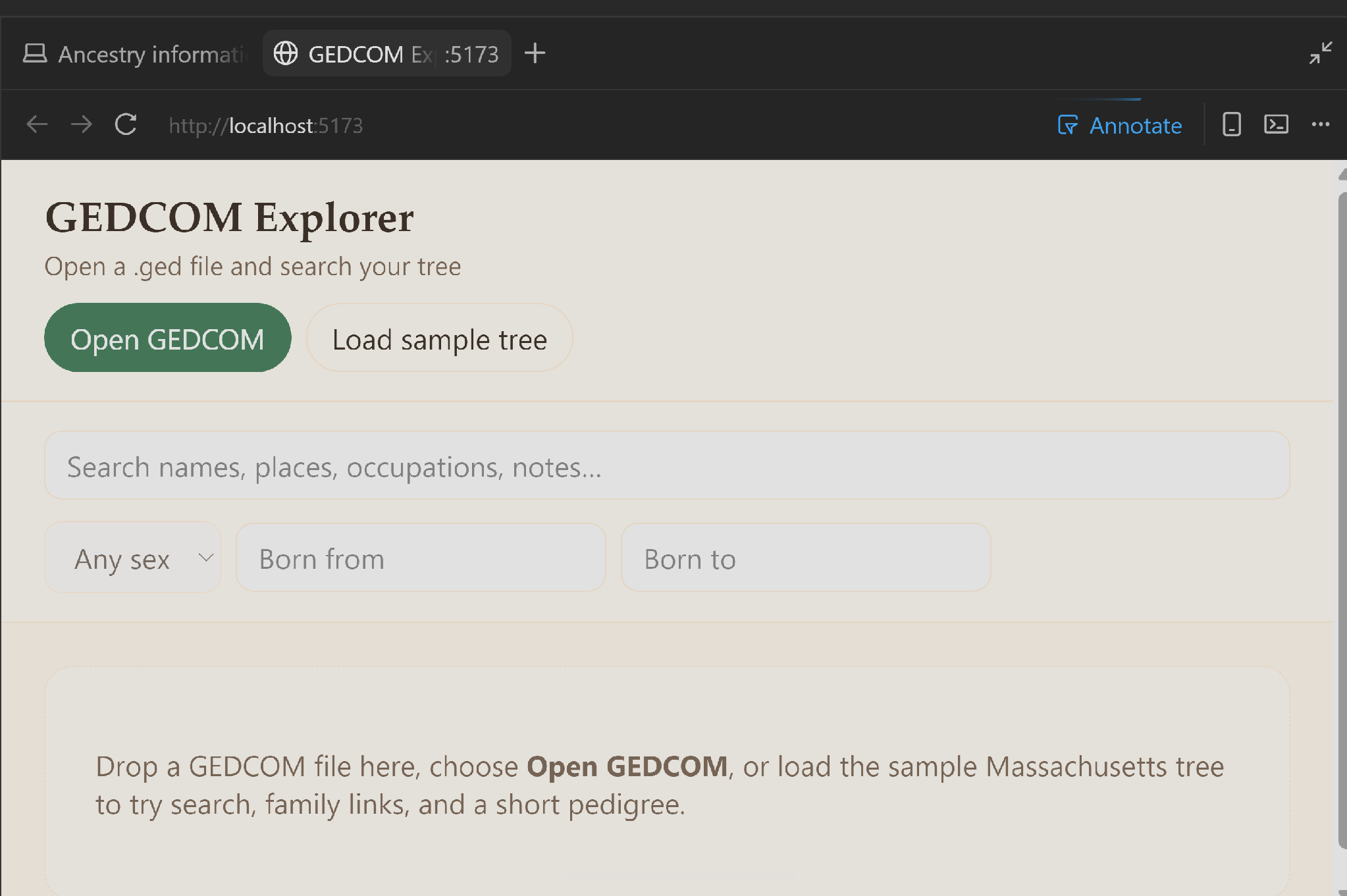
GEDCOM Explorer at localhost:5173, with the search box, filters and a drop zone for .ged files.
To start it again later, I run npm run dev from the project folder.
What Node.js is and why it was installed
Node.js is a program that runs JavaScript on your own computer, outside a web browser. A browser runs JavaScript that is already on a web page; Node runs JavaScript as a tool, the way any other program on the PC runs.
GEDCOM Explorer needed it because the app is written as source code, not as a finished web page. It uses TypeScript and React, and a browser cannot run those directly. They have to be compiled and bundled first, and the tools that do that (Vite, the TypeScript compiler, React’s build plugin) are all Node programs. Node also includes npm, which does three jobs here:
- Downloads the app’s libraries, such as React and Vite, into a node_modules folder.
- Runs npm run dev, which starts the local copy at localhost:5173 while the app is being built and tested.
- Runs npm run build, which compiles everything into plain HTML, CSS and JavaScript files in the dist folder.
Cursor installed Node.js through the Windows package manager because the PC did not have it. Node is only needed on the PC where the app is built. The files in dist are static, so InMotion’s web server and visitors’ browsers need no Node.js at all, which is why a normal hosting account can serve the app.
Putting it on a website
I then asked how to run it on my own website. Because the app has no server or database, it exports as a static site. Running npm run build creates a dist folder, and uploading the contents of that folder to any web host is enough. Visitors can then open their own GEDCOM files in their browser, and the files never reach my server.
One catch: if the app lives in a subfolder such as yoursite.com/gedcom/, the build needs a base path set first, or the page will not find its CSS and JavaScript.
I put it on walterhutskyjr.com, a WordPress site hosted on InMotion Hosting, in a /gedcom/ subfolder. These are the steps.
Set the base path
The app lives in a subfolder, so its CSS and JavaScript links need to start with /gedcom/. In the project’s vite.config.ts, add base: ‘/gedcom/’ inside defineConfig. The file has one export default defineConfig only, as shown below.
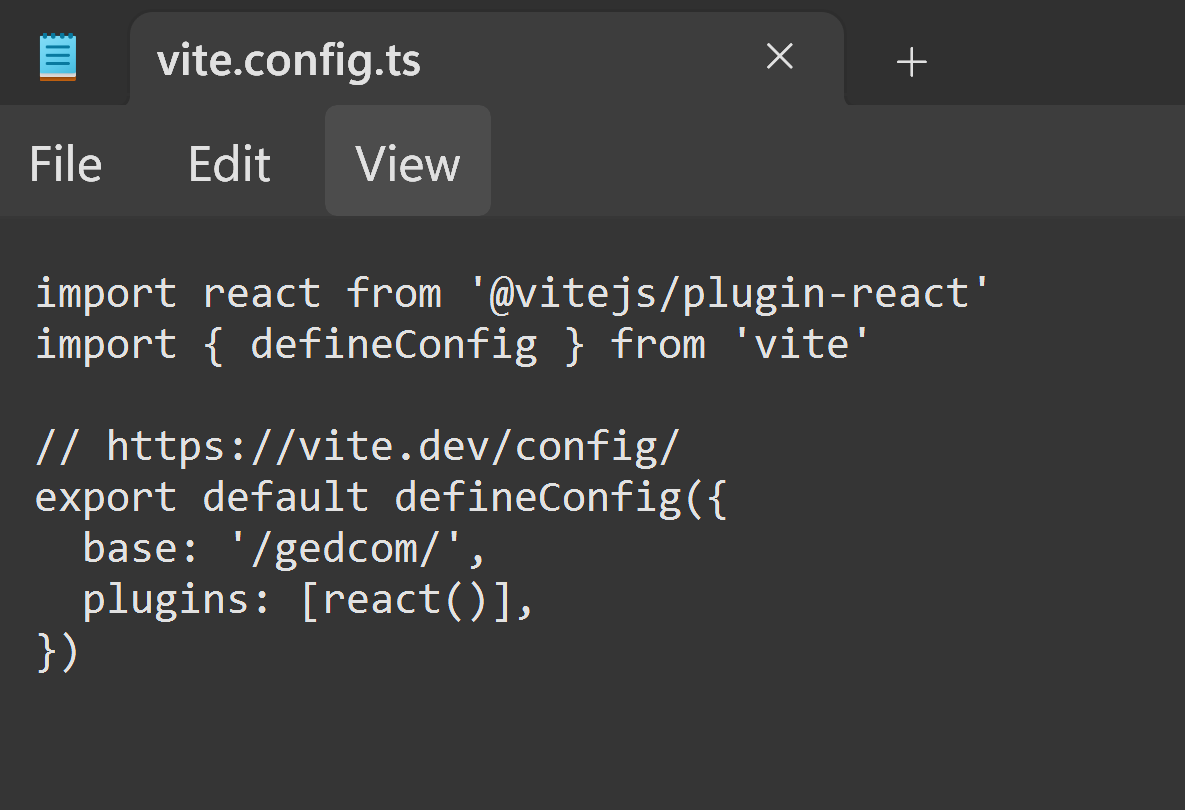
vite.config.ts with the base path set to /gedcom/.
Build the site
Open PowerShell in C:\Users\walth\gedcom-explorer and run npm.cmd run build. The .cmd form avoids PowerShell’s script restriction. The build finishes in under a second and writes index.html and an assets folder into dist.
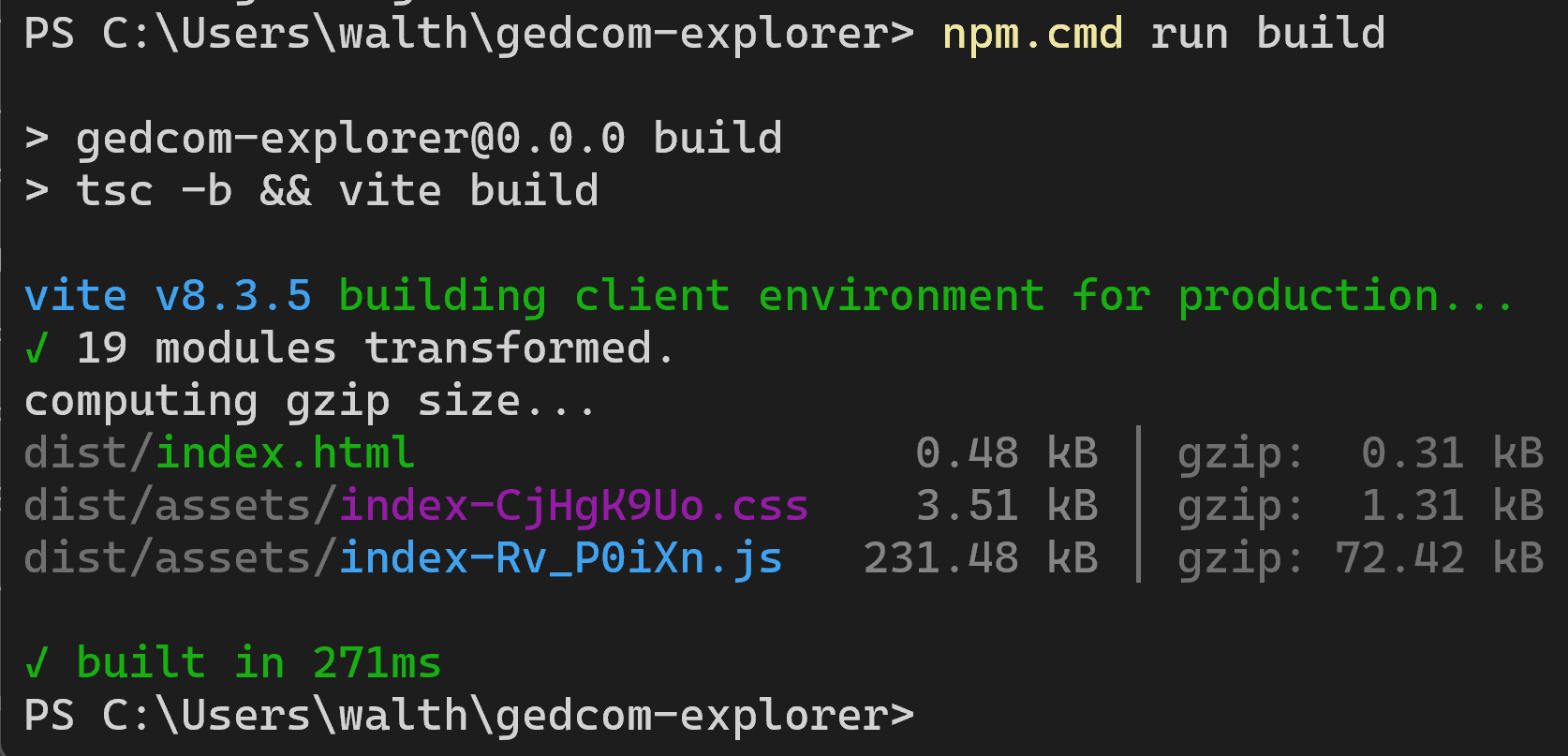
The build finishing in PowerShell: it writes index.html and the assets folder into dist.
Zip and upload to InMotion
Zip the contents of dist (index.html, assets and sample.ged) so that index.html sits at the top level of the zip. In InMotion’s cPanel, open File Manager, go to public_html and create a folder named gedcom. Upload the zip into that folder, choose Extract, then delete the zip.
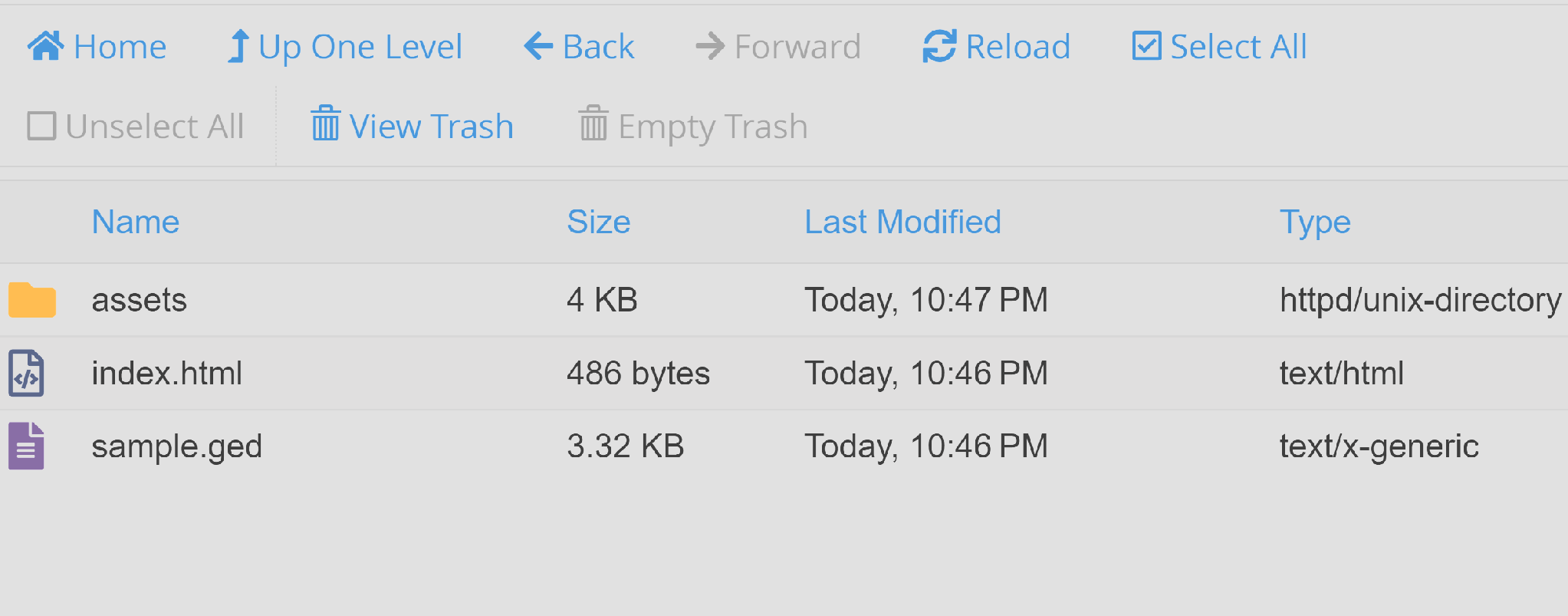
cPanel File Manager after extracting the zip: assets, index.html and sample.ged sit directly in the gedcom folder.
Check the live site
Open walterhutskyjr.com/gedcom/. The app should load with the search box, the filters, and the Open GEDCOM and Load sample tree buttons. Visitors’ own .ged files are read in their browser and are not uploaded to the server.
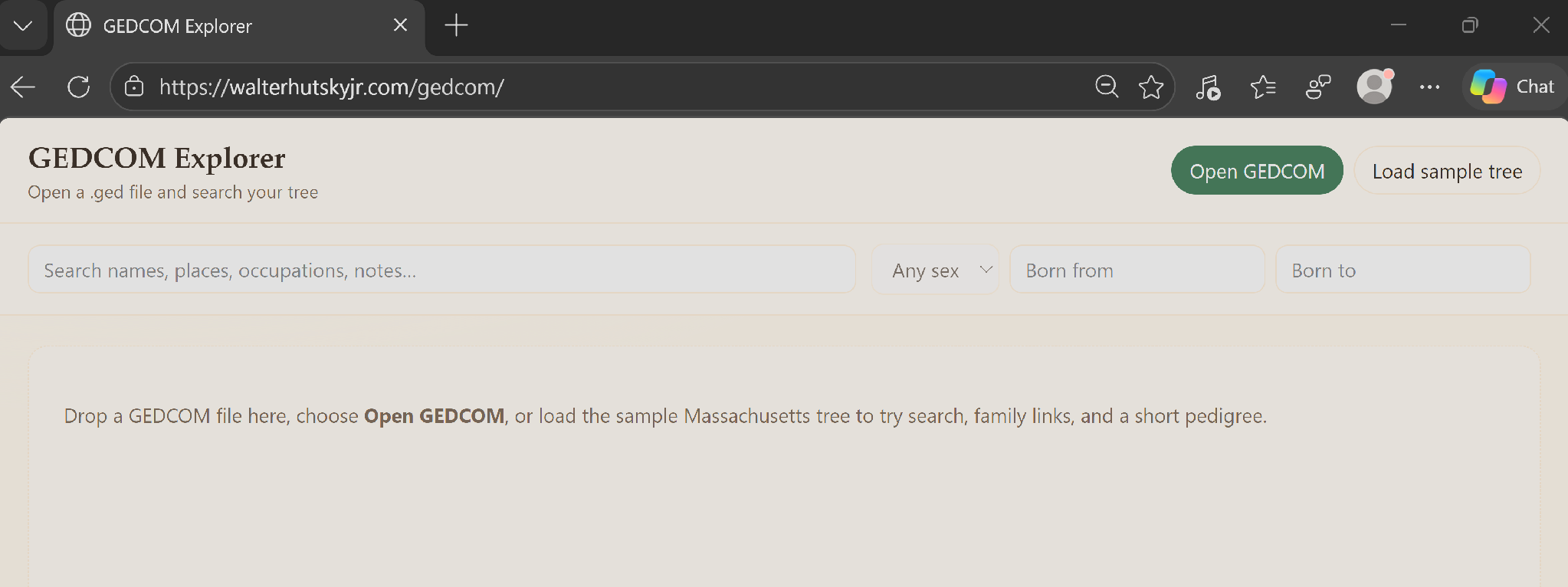
GEDCOM Explorer running live at walterhutskyjr.com/gedcom/.
Fixing the sample tree
After the first upload, the app loaded but Load sample tree showed “No people found in that GEDCOM file.” The steps below are what fixed it.
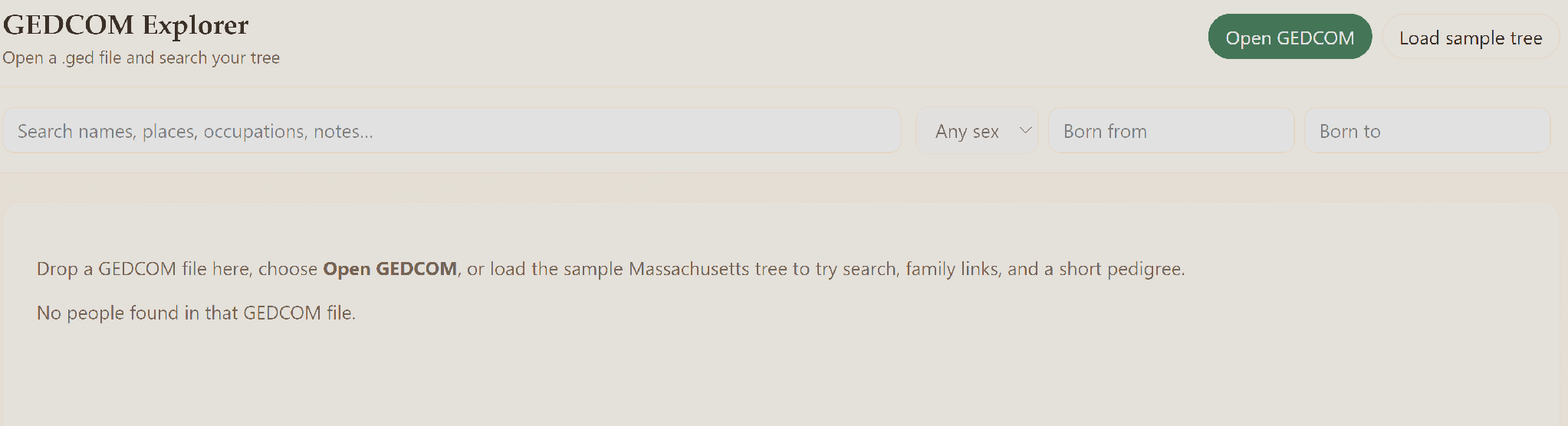
The error after the first upload: Load sample tree found no people.
What was wrong
In src\App.tsx, line 73 requested the sample with fetch(‘/sample.ged’). That path points at the root of walterhutskyjr.com, not the /gedcom/ folder, so WordPress answered with its own page and the app found no people in it. The base: ‘/gedcom/’ setting in vite.config.ts fixes the CSS and JavaScript links but not a hard-coded path like this one.
What I changed
I changed that line to fetch(`${import.meta.env.BASE_URL}sample.ged`). The value import.meta.env.BASE_URL is /gedcom/ in the built site and / when running locally, so the same code works in both places. Nothing else in the project changed.
How I redeployed
- Ran npm.cmd run build again in C:\Users\walth\gedcom-explorer. The build wrote a new JavaScript file with a new name into dist/assets.
- Uploaded the new index.html and the new .js file to public_html/gedcom in cPanel File Manager, overwriting the old index.html. sample.ged and the CSS file had not changed.
- Deleted the old index-Rv_P0iXn.js from public_html/gedcom/assets after confirming the site loaded.
- Refreshed walterhutskyjr.com/gedcom/ with Ctrl+F5 and clicked Load sample tree. It loaded 11 people and 4 families.
The finished site
The Load sample tree button now works at walterhutskyjr.com/gedcom/. One click loads the bundled sample.ged, a test family tree of 11 people and 4 families from Massachusetts, so visitors can try the app without a file of their own.
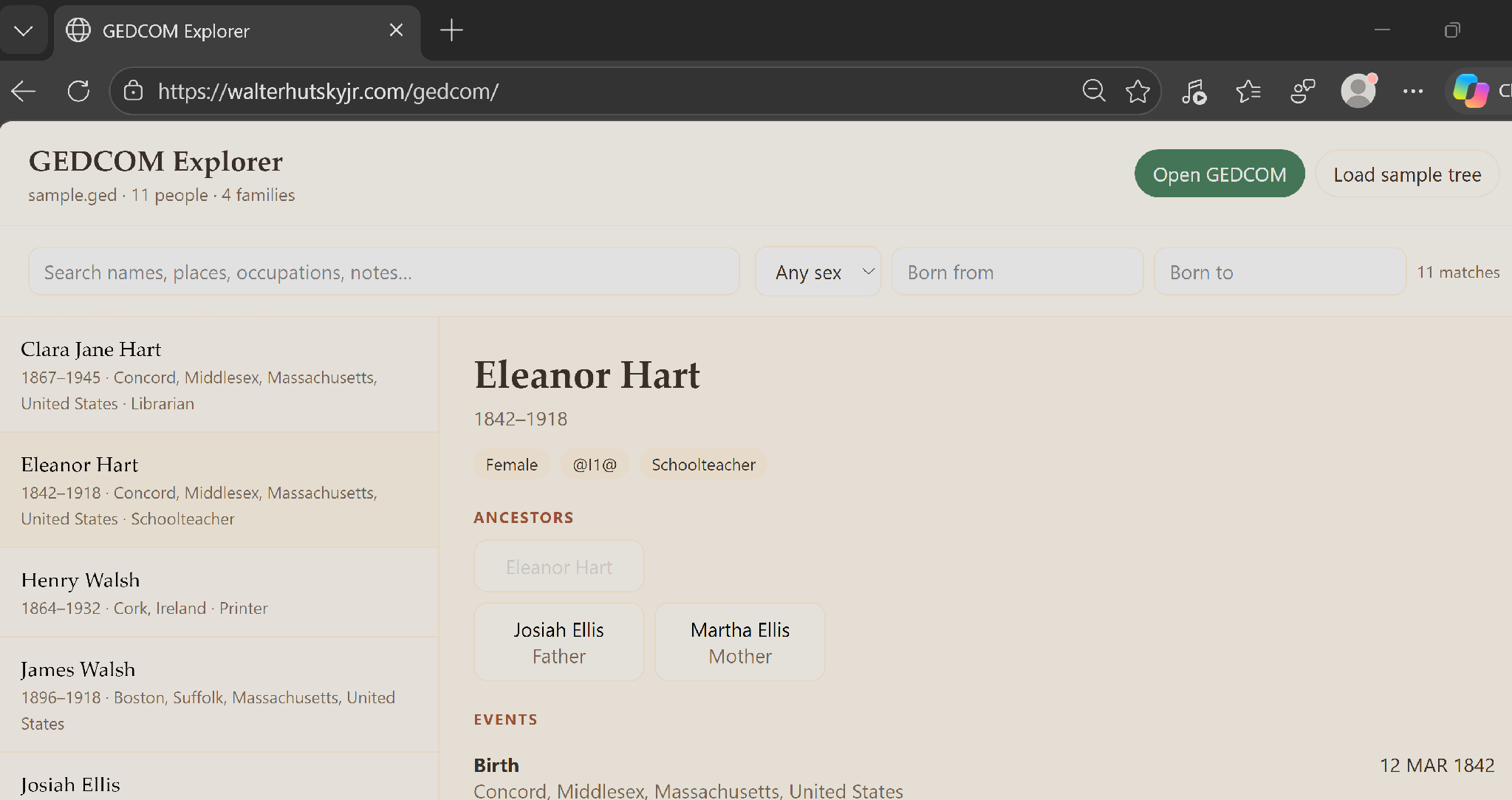
The sample tree loaded at walterhutskyjr.com/gedcom/, with Eleanor Hart selected.
- Header: the loaded file name with its count, here sample.ged, 11 people and 4 families.
- Search bar and filters: search names, places, occupations and notes, and filter by sex and birth year. The right end shows the number of matches.
- People list (left): each person with birth and death years, birthplace and occupation.
- Person detail (right): the selected person’s name, years, sex, record ID and occupation, then ancestors and events. In the screenshot this is Eleanor Hart (1842 to 1918), a schoolteacher born in Concord, Middlesex, Massachusetts, with parents Josiah Ellis and Martha Ellis.
Clicking a parent, spouse or child in the detail pane jumps to that person.
Takeaways
Vibe coding a small, well-defined app is easy now. One plain-English sentence got me a working tool, including the setup work I would otherwise have had to figure out myself, like installing Node.js.
- You still need to know what you want. The clearer the idea, the better the result.
- Start small. A single-purpose app like a file reader is a good first project.
- Expect to iterate. My next requests would be a larger pedigree chart and source citations, and I would just ask for them in the same chat.
If you have wondered whether AI coding tools are ready for non-programmers, a project like this is a cheap way to find out.
